How to Fix the "Bootmgr is missing" Error in Windows
Note: This problem is not hardware related and can be fixed with a Windows 7 DVD OR a system repair disc.
NOTE: Sometimes it may take running a startup repair a few times before it fully fixes the startup issue.
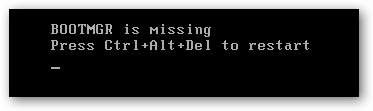
- Boot to the System Recovery Options screen.
- Select the Startup Repair option.
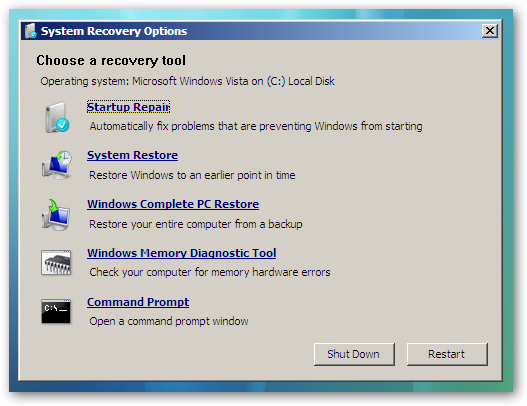
- Now click on Startup Repair. Run the startup repair and it will attempt to fix this issue.
- Click on Command Prompt.
- Type c: and press <Enter>.
- At the C:\ prompt, type cd boot and press <Enter>.
- At the C:\Boot prompt, type the following commands and press Enter after each command.
bootrec /FixMbr
bootrec /FixBoot
bootrec /RebuildBcd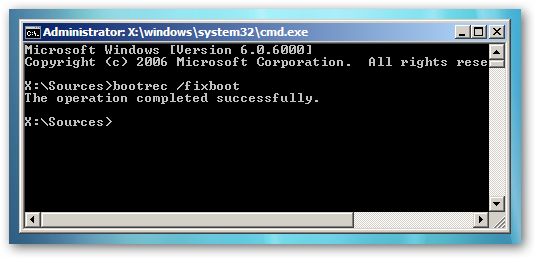
- Now close the command prompt, remove the DVD and reboot your computer.
NOTE: It will ask you to reboot your system. Reboot to see if it works. If it doesn't work, follow step 4. 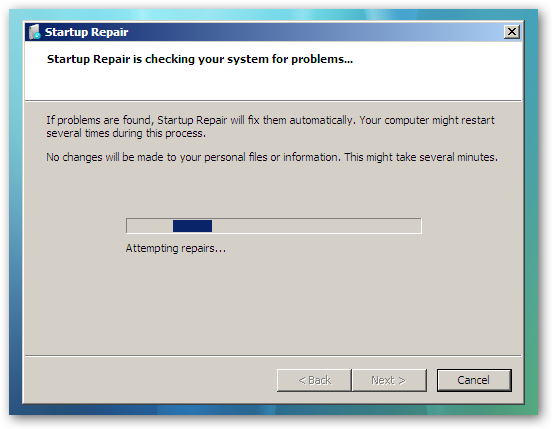
Note: C:\ is the drive letter where Windows 7 is installed. You may replace it with whatever drive letter you want where you have installed Windows 7.
TKB:1121